

How do I set my posting queue times?
Your posting queue decides when posts you add with Queue Up Next are published.
Step #1: Open X AI Writer for Creators + Post Analytics > Account Settings from the left menu. You can also click your account avatar in the bottom-left corner and then click SETTINGS.

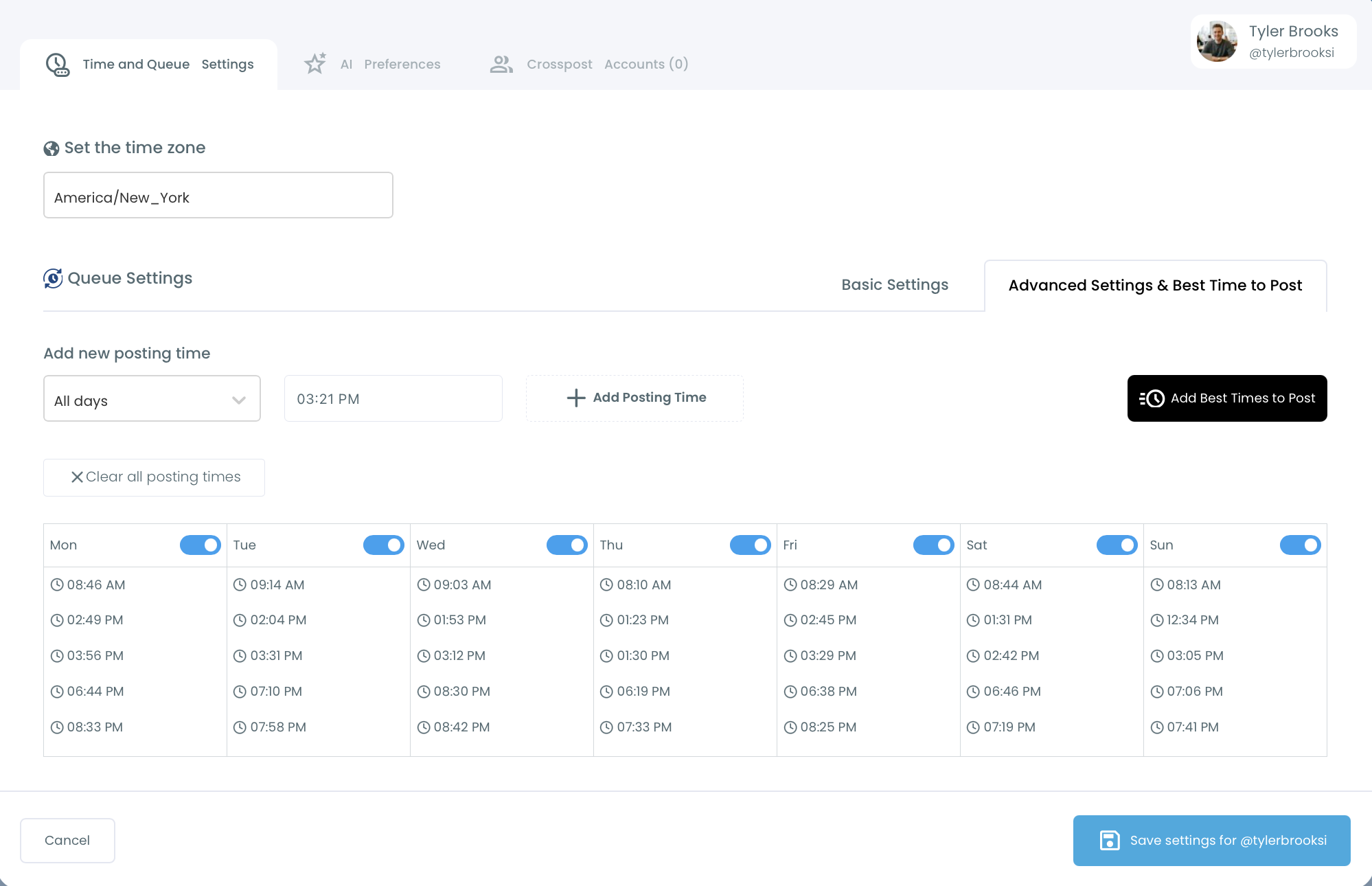
Step #2: Open the Time and Queue Settings tab.
Step #3: Check Set the time zone. All queue times and scheduled posts use this time zone.
Step #4: Under Queue Settings, choose Basic Settings or Advanced Settings & Best Time to Post:
- Choose a day (or All days) and a time, then click + Add Posting Time.
- Or click Add Best Times to Post to fill the queue with the times when your followers are most active.
- Use the toggle on each day to turn that day on or off, and remove single times you don't need.
- Clear all posting times removes every time slot.
Step #5: Click Save settings for @your account.
Changing the time zone doesn't move posts you already scheduled; it applies to new posts from then on. Each connected X account has its own settings.