

How to delete media bookmarks
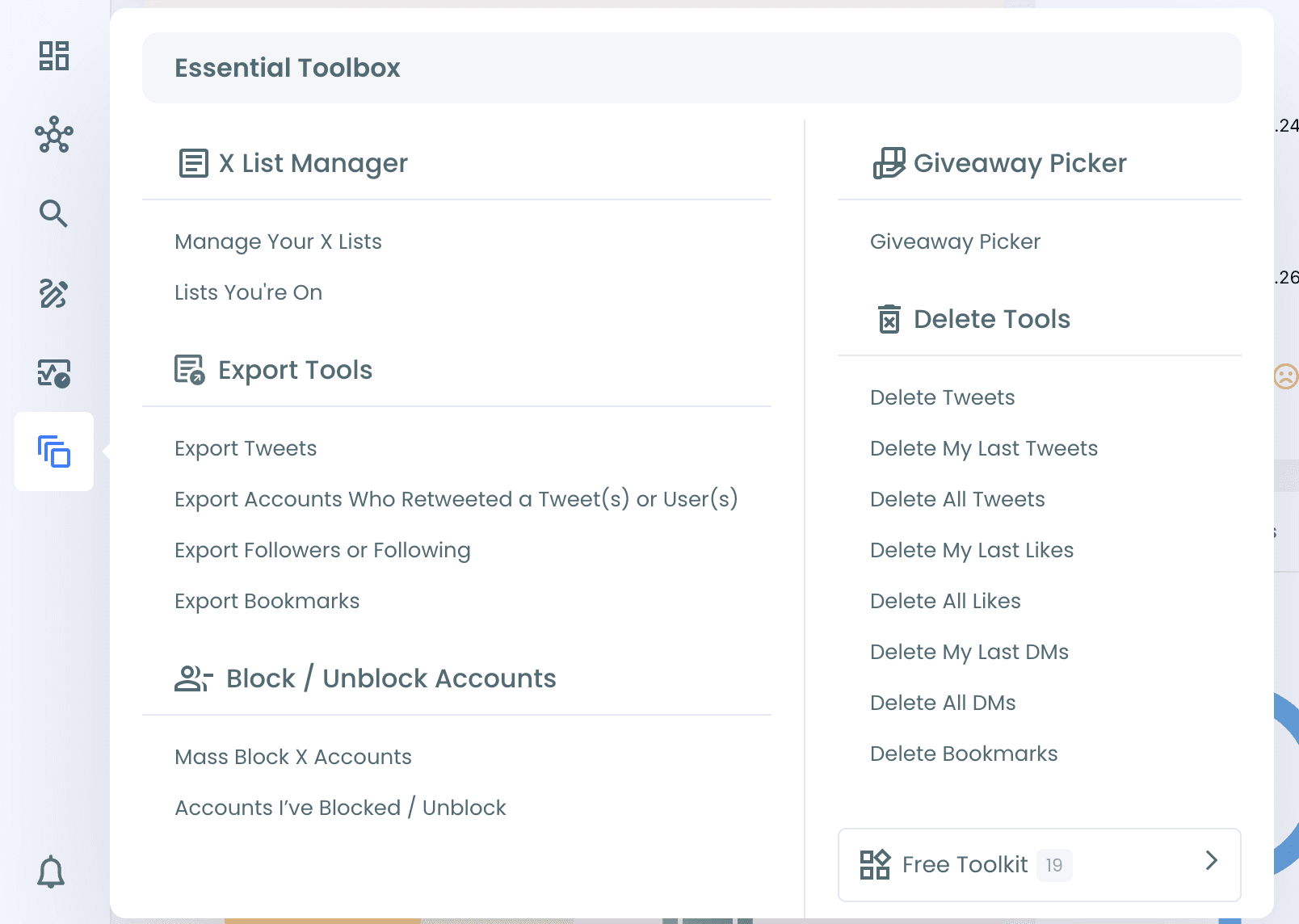
Step #1: Log in to Circleboom Twitter. From the left menu, open Essential Toolbox > Delete Tools > Delete Bookmarks.
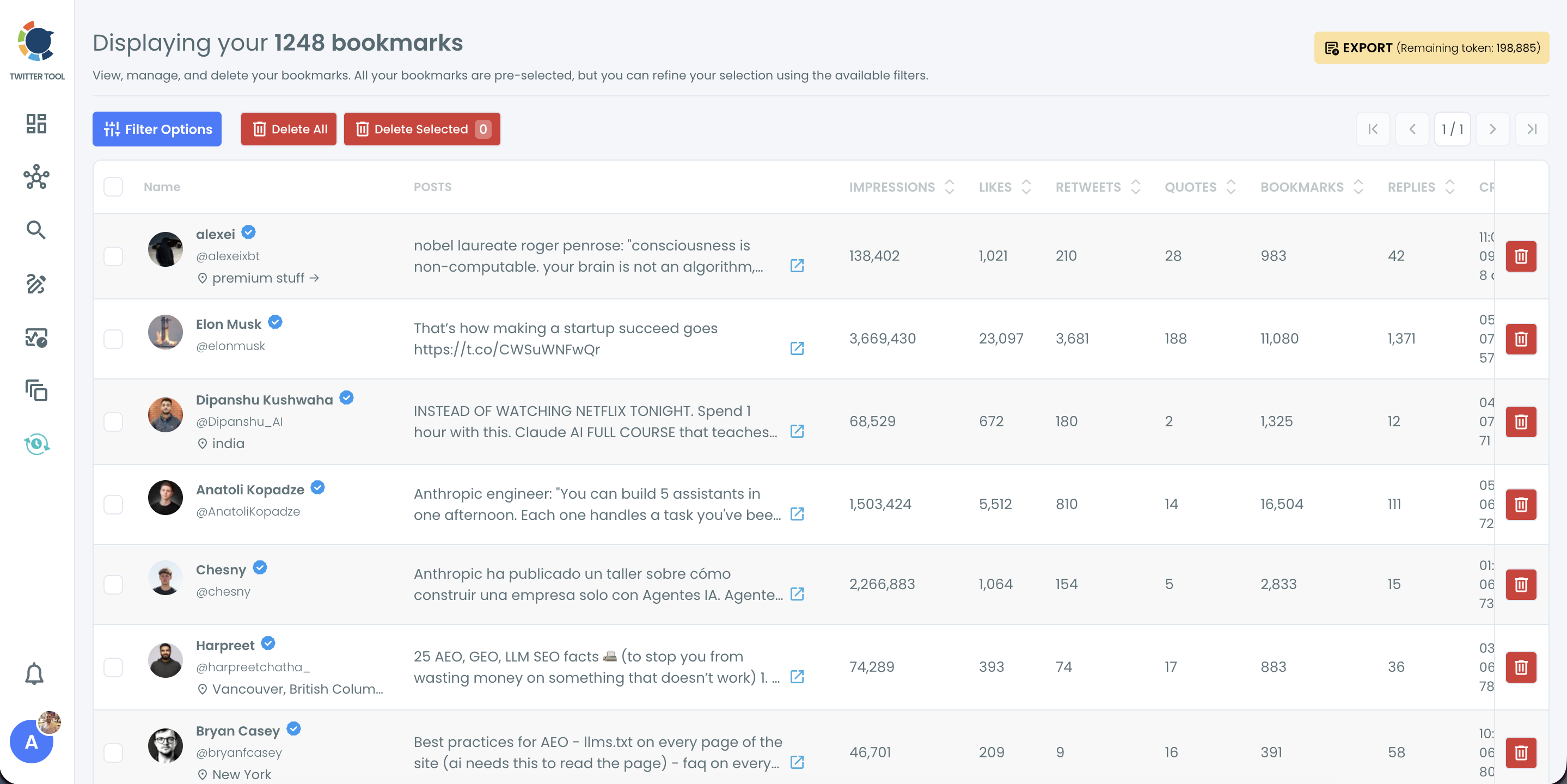
Step #2: Your bookmarks are listed with their impressions, likes, retweets, quotes, bookmarks and replies. All bookmarks are selected by default. Click Sync My X Data for fresh insights if you want to refresh the list first.
Step #3: Click Filter Options. Use the Media filter to show only the bookmarked tweets that contain media, then apply the filter.
Step #4: Select the bookmarks you want to remove and click Delete Selected, or click Delete All to remove every bookmark in the filtered list.
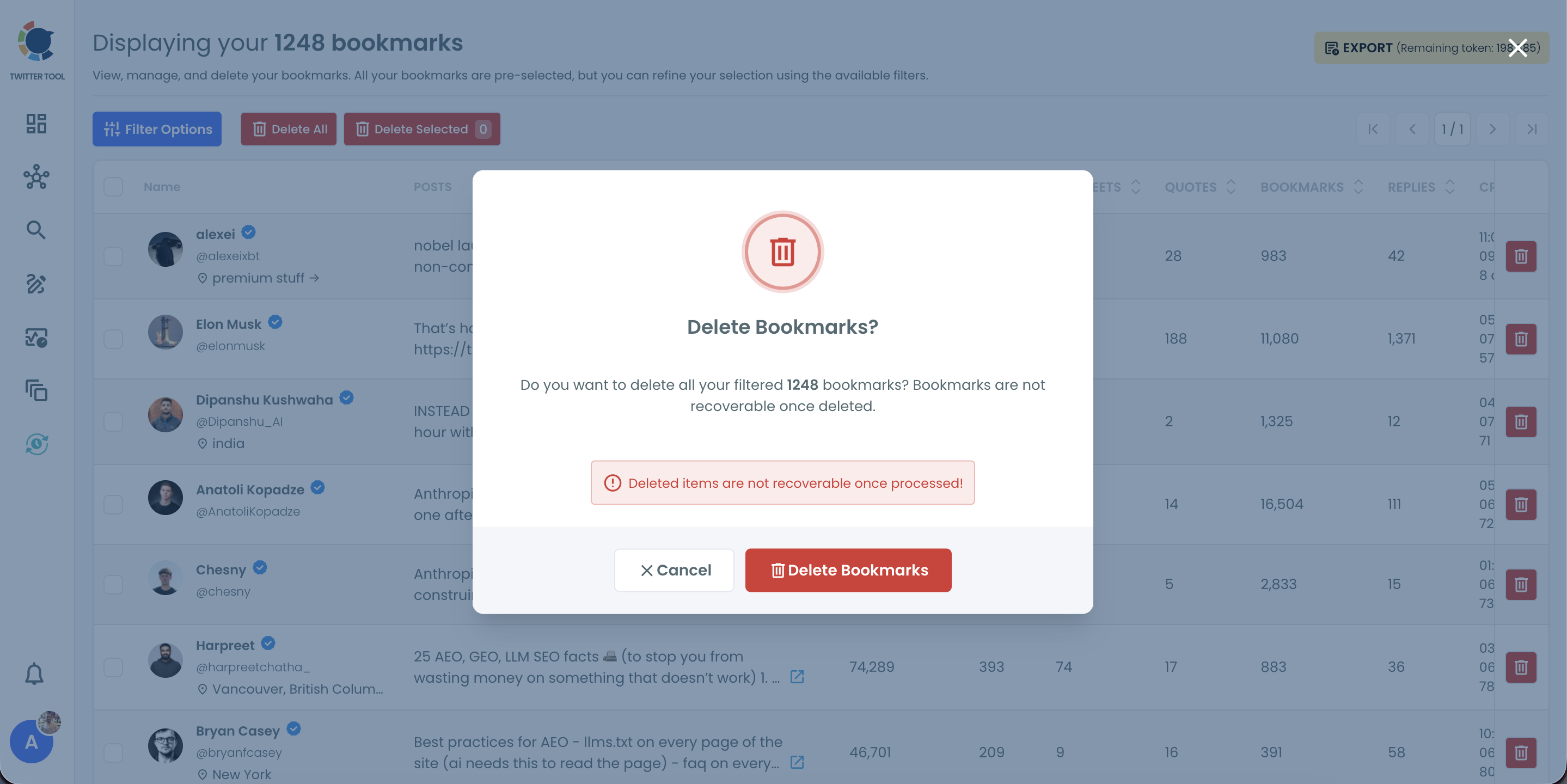
Step #5: Confirm in the pop-up. Deleted bookmarks can't be restored, but the original tweets are not affected.
You can learn more on the Delete Twitter Bookmarks page.