

How to export bookmarks with keywords or hashtags
X doesn't offer a way to export your bookmarks. Circleboom is an Official X Enterprise Developer and retrieves your bookmarks through the official X API.
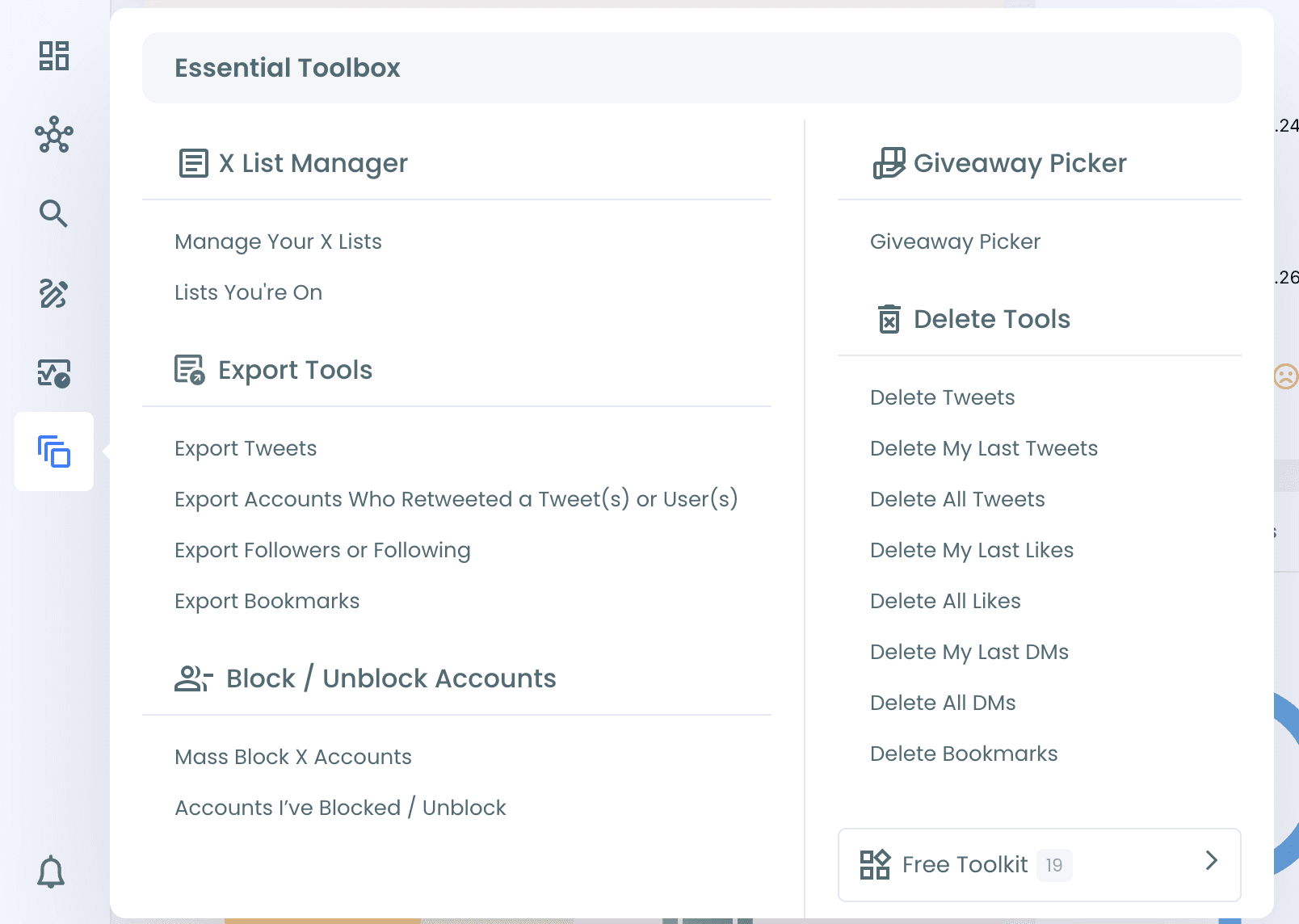
Step #1: Log in to Circleboom Twitter. From the left menu, open Essential Toolbox > Export Tools > Export Bookmarks.
Step #2: Your bookmarks are listed with their impressions, likes, retweets, quotes, bookmarks and replies. All bookmarks are selected by default. Click Sync My X Data for fresh insights if you want to refresh the list first.
Step #3: Click Filter Options. In the Keyword / Username or Hashtag field, enter what you are looking for, for example marketing, #AI or @username, and apply the filter.
Step #4: Only the matching bookmarks stay in the list. Click Export and confirm.
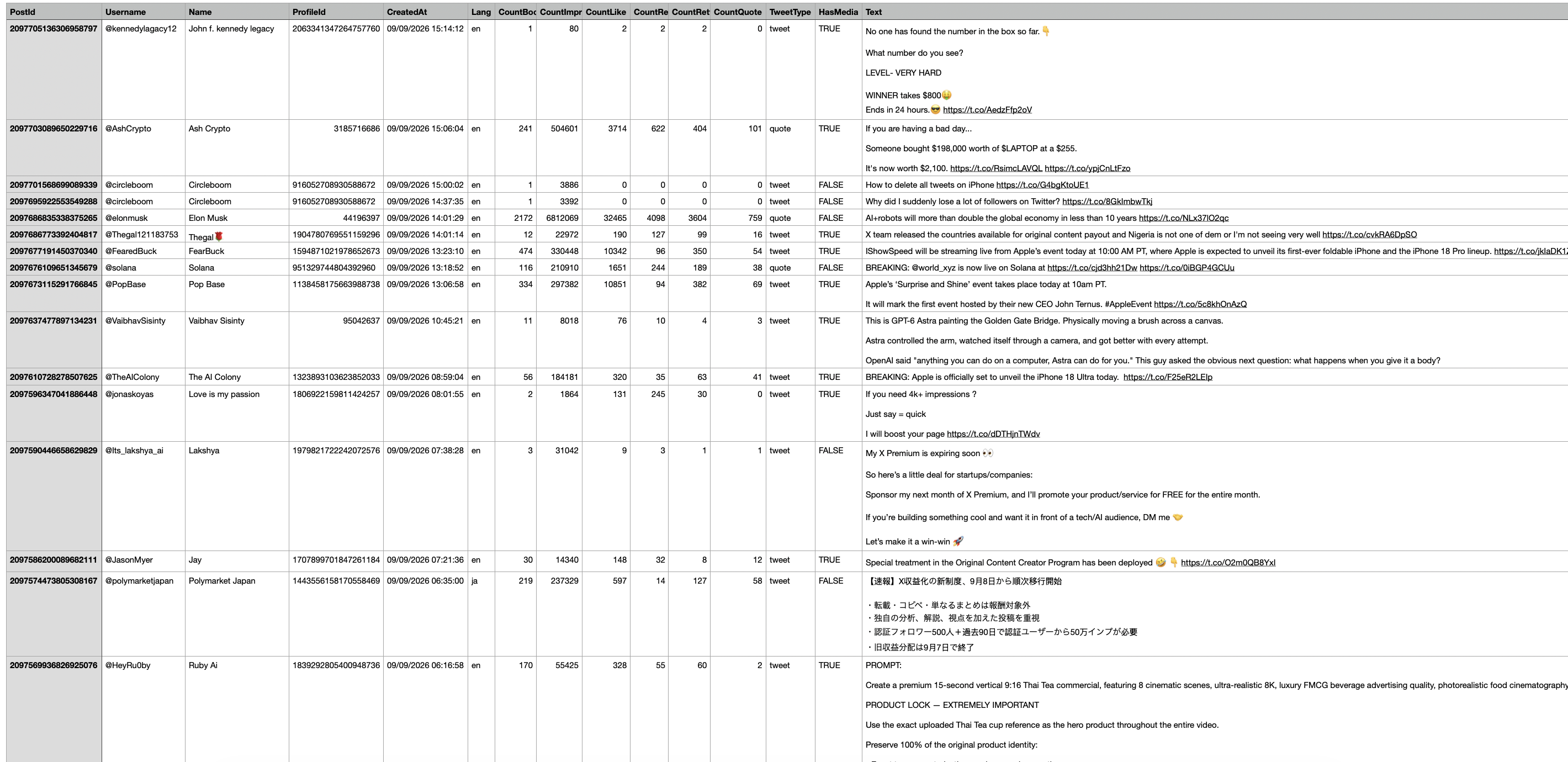
Step #5: Your CSV file includes the post ID, username, name, created date, language, engagement counts, tweet type, media flag and the full text of each bookmarked post.
You can learn more on the Export Twitter Bookmarks page.