

Publishing a tweet once is rarely enough to maximize its reach. On X (Twitter), visibility depends heavily on timing, repetition, and audience activity. That’s why Circleboom allows you to set Auto Retweet at the moment you publish a new tweet—without any extra steps later.
With Circleboom’s X Post Planner, you can prepare your tweet, schedule it for the best time, and define an auto retweet cycle before it even goes live.
Why Use Auto Retweet While Publishing?
Setting auto retweet during publishing helps you:
- Increase impressions without spamming
- Reach followers in different time zones
- Keep high-value tweets visible longer
- Automate retweet and un-retweet cycles
- Avoid manual reposting after publishing
Instead of returning later to boost a post, everything is handled in one flow.
How Auto Retweet Works During Publishing
When creating a post via X Post Planner, Circleboom lets you define:
- When the tweet should be retweeted
- When it should be un-retweeted
- How many times the cycle should repeat
Once the post is published, Circleboom automatically manages the entire process based on your selections.
There’s no need to track timing manually or remember to repost later.
How to Set Auto Retweet While Publishing a Tweet
While creating a post in X Post Planner, simply click the Auto Retweet button and choose your preferred settings before publishing.
Step #1: Log into Circleboom Twitter and open X Post Planner

After logging in with your X account, go to the left-hand menu and click on “X Post Planner + AI Writer.”
Click the “Write & Plan Your Post” button to begin crafting your tweet.

If needed, you can also use the built-in AI tools to generate your next tweet or create a thread from a URL, a block of text, or even another tweet.
Step #2: Add visuals to enhance your post
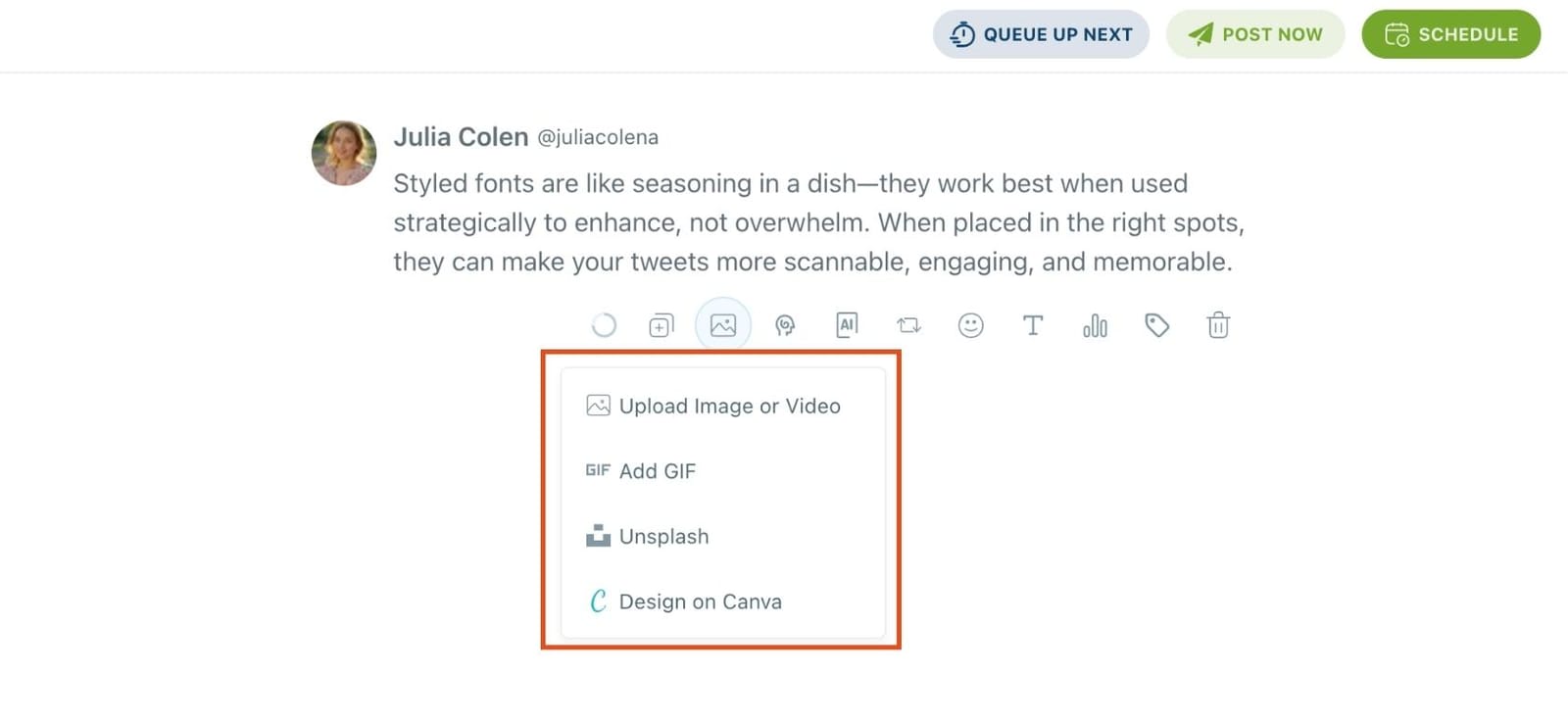
You can upload images or videos, add a GIF, pull high-quality photos directly from Unsplash, or design something custom using Canva—all without leaving Circleboom.
These media options are available under the image icon in the editor.
Step #3: Use AI to write and improve your text
You can create a new tweet or rewrite your tweet with the AI Tweet Generator to make it more punchy, add emojis or hashtags, fix grammar, rephrase for clarity, or even continue writing where you left off.
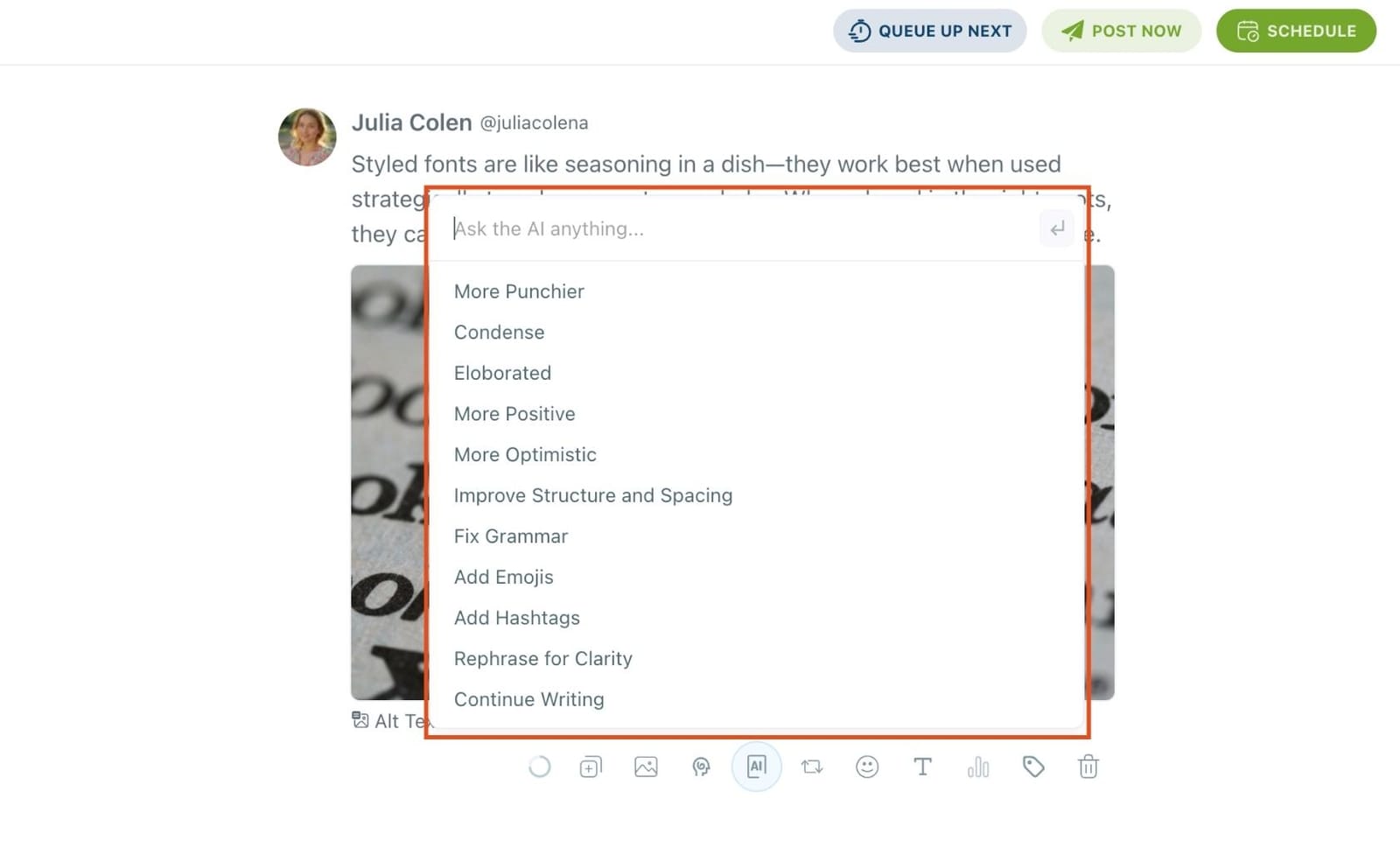
The AI tools are designed to match your tone—whether you want something professional, casual, or energetic.
Step #4: Highlight text and apply a font style.
Select the part of your tweet you want to style. Click the Font & Styling (T) option.
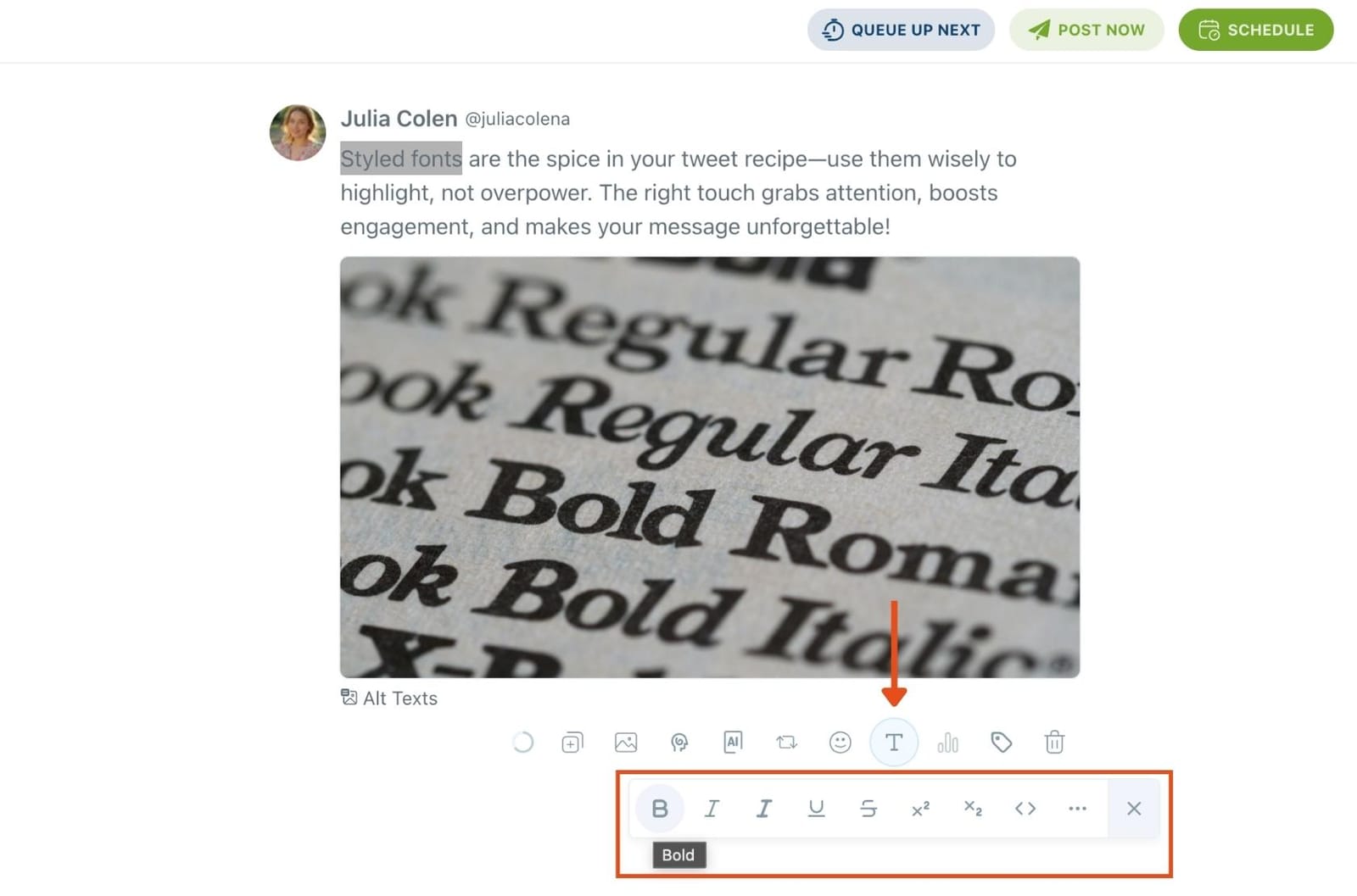
You’ll see a dropdown with options like:
Normal Text Fullwidth Fraktur / Fraktur Bold Double Struck Cursive Script Circled / Circled Inverse Squared / Squared Inverse Inverted …and more.
Step 5: Set auto-repost to increase visibility You can turn on the Auto Repost feature to reshare your tweet automatically. Set how long to wait before reposting, when to un-post it, and how many times to repeat the cycle.
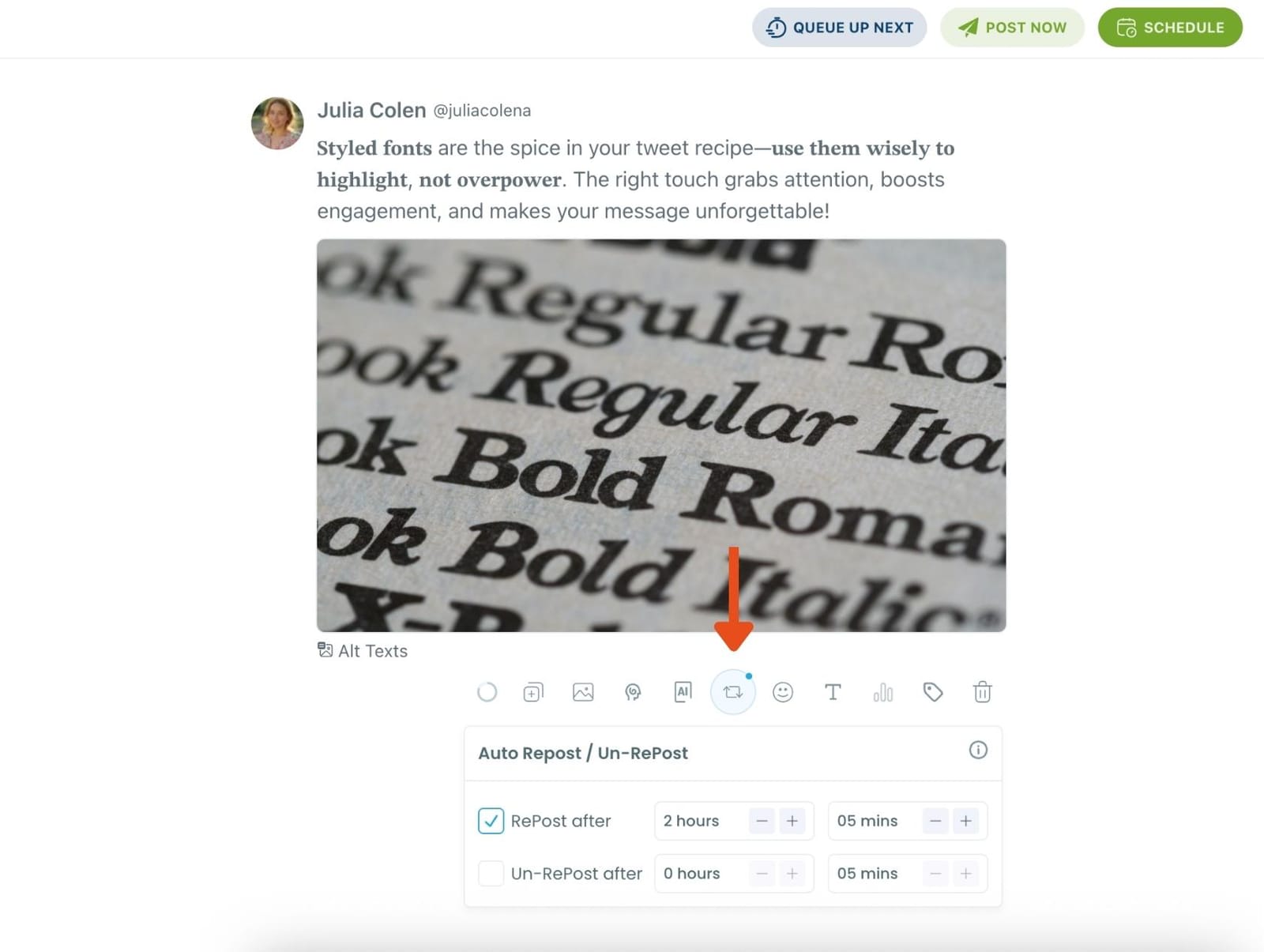
This is a useful way to reach followers across different time zones without any manual effort.
Step #6: Post or schedule your tweet
Once your tweet is ready, you can choose to post it immediately or click the green “Schedule” button to post it later.
You can choose the exact date and time or let Circleboom suggest the best posting time based on your audience activity.
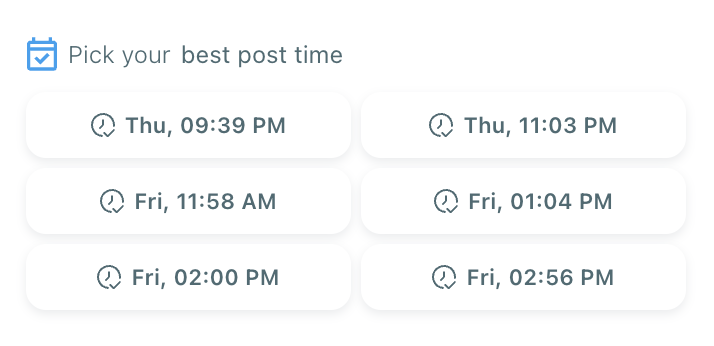
Your tweet will be automatically published at the optimal moment.
Where to Manage Active Auto Retweets
After the tweet is published:
All active auto retweet cycles appear under Sent Items
Tweets with an active cycle show a red indicator on the Auto Retweet icon
Clicking the red Auto-RT icon displays:
- Cycle status
- Completion time
- A Cancel Auto-RT option
This allows full control even after the post is live.
Good to Know
- Auto retweet settings are tied to the specific post
- You can cancel an active cycle at any time from Sent Items
- New cycles can be scheduled once the current one finishes
- Everything runs safely within X API limits
Summary
By enabling Auto Retweet while publishing, Circleboom turns a single tweet into a long-lasting visibility engine—without extra work.
Create once. Schedule smart. Let Circleboom handle the rest.