

How do I schedule monthly competitor reports?
Step #1: Open Monitoring > X Competitor Analysis & Benchmark Report and add the accounts you want to compare under Account Handles.
Step #2: Click Start Competitor Analysis and select Keep it up to date every month (marked RECOMMENDED).
Step #3: Use MONTHS to choose how many months the schedule should run.
Step #4: Use FIRST MONTHLY REPORT ON to choose the day of the month for your monthly reports.
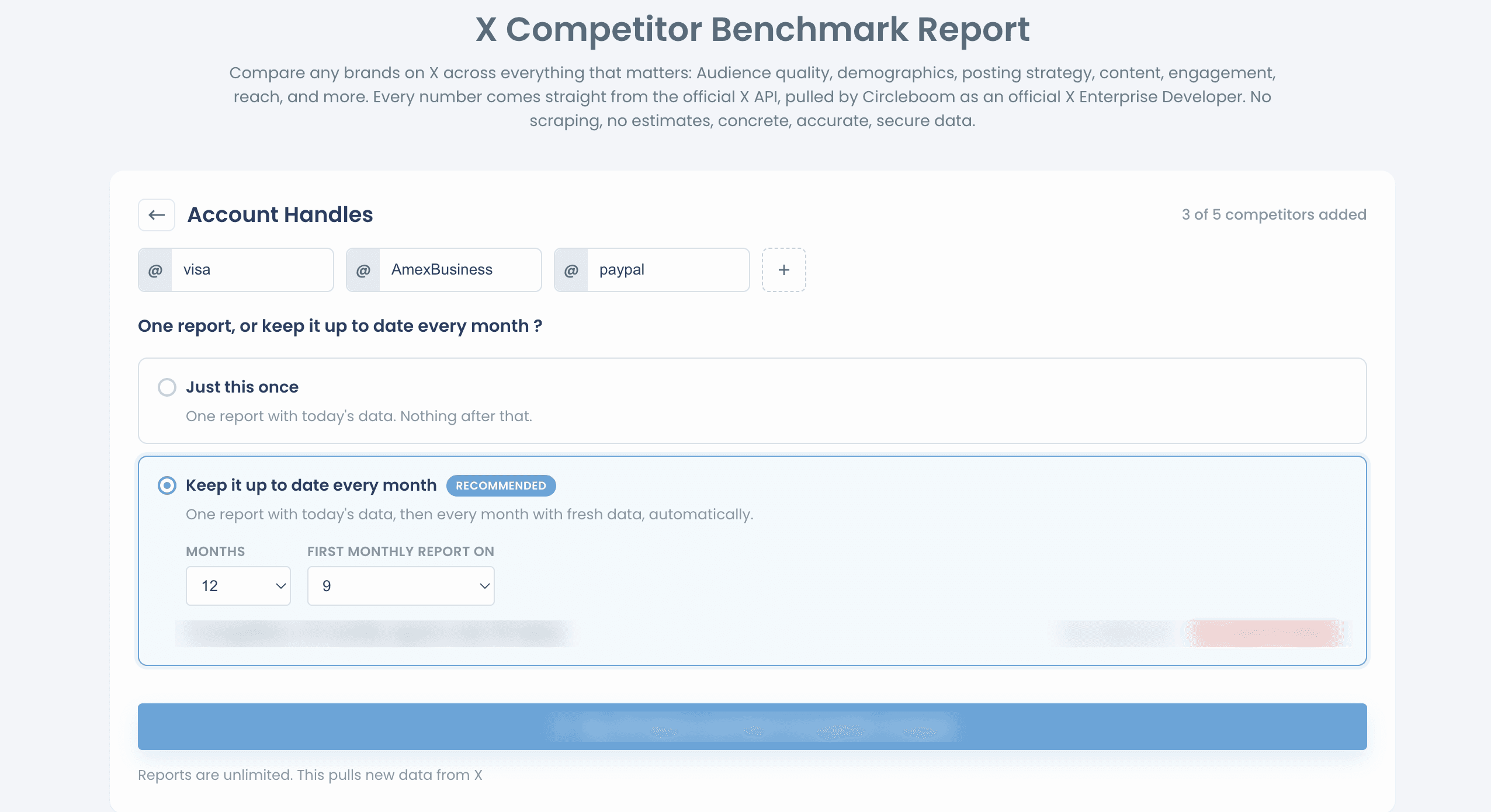
Step #5: Start the analysis. You get one report with today's data right away, then one report every month with fresh data. For example, a 12-month schedule gives you 13 reports in total.
How do I stop a monthly schedule?
Find the report under Your saved analysis and click End Scheduling. Your earlier reports stay available under Past Analyses.
Why use monthly reports?
Each monthly report is dated, so you can follow the same group of accounts month after month and see when something changed. Keep the same accounts in the set, so each new report compares the same group.